Paid Groups in Communities
The new Paid Groups feature in Communities allows monetization of both Public and Private groups. Admins and Owners can now charge users for access to exclusive content, discussions, and features.
In This Article
- Private and Public Groups
- One-Time Payment
- Recurring Subscription
- Group Access
- Notifications
- Cancellations and Refunds
Private and Public Groups
Admins can set the visibility of a group as either Public or Private.
To configure:
- Go to the Community
- Click Settings
- Choose between Public or Private

Public Group: Members join automatically after payment.
Private Group: Admins must approve membership requests after payment.
One-Time Payment
This option grants members lifetime access to the group after a single payment.
To set up:
- Log into the Community
-
Navigate to Settings > Subscriptions
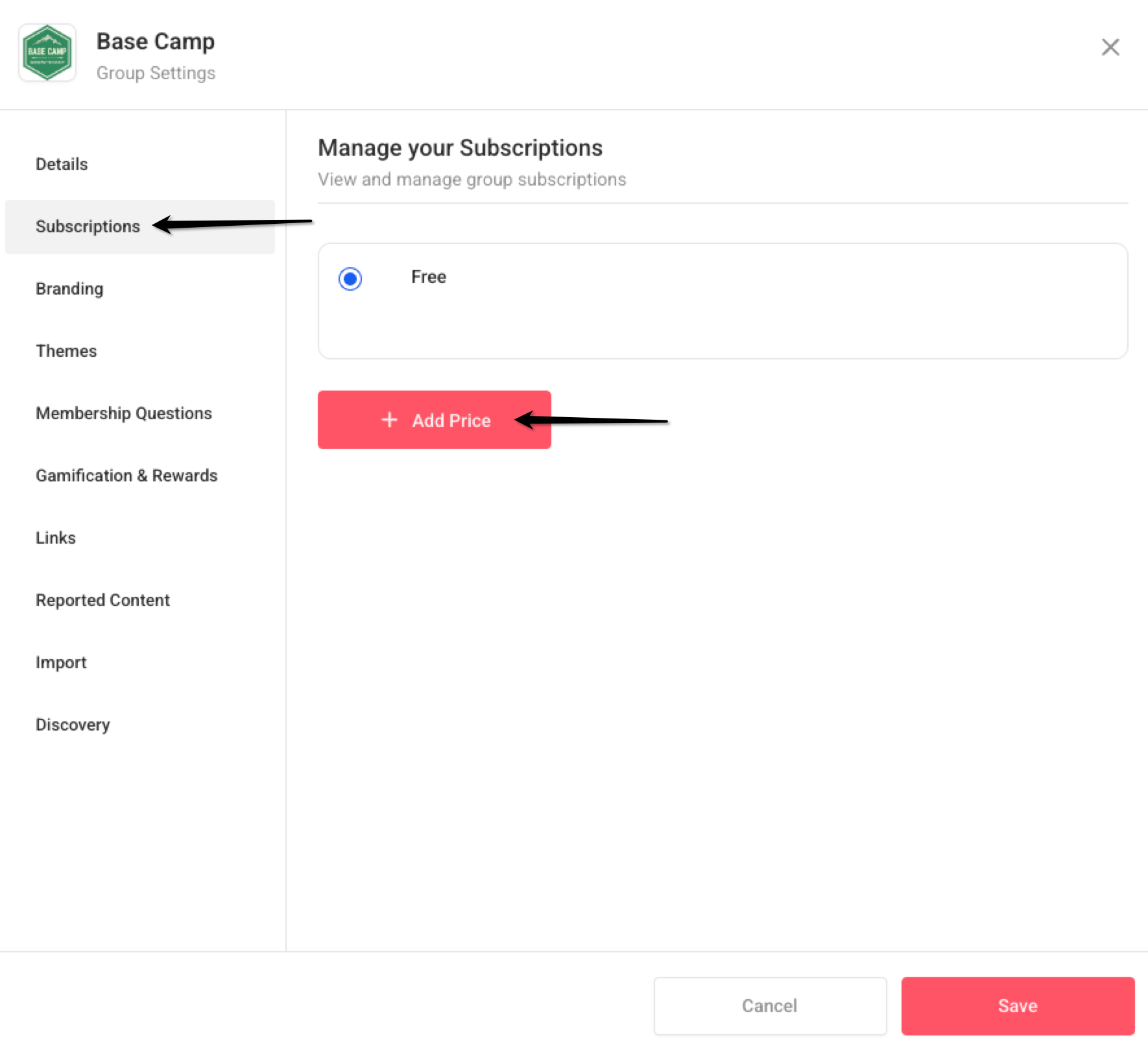
- Click Add new price
- Set Amount
-
Select Type: One-time
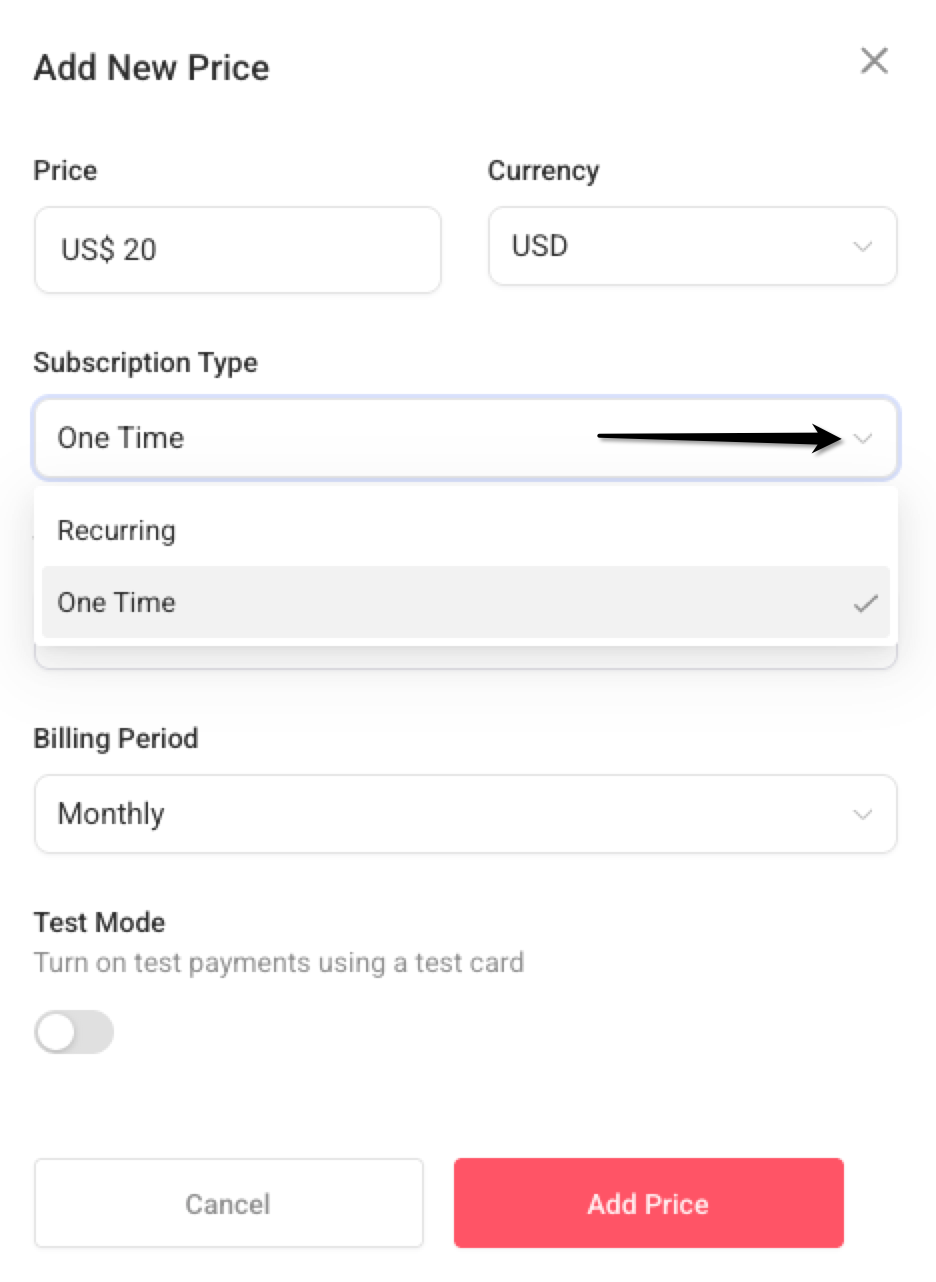
- Click Add, then Save
- Enable Test Mode to test payments (optional)
Once saved, the group description will show the payment requirements to users.
Recurring Subscription
This option provides access on a subscription basis (monthly or yearly).
To set up:
- Log into the Community
- Navigate to Settings > Subscriptions
- Click Add new price
- Set Amount
- Select Type: Recurring
- Configure Trial Days (if any)
-
Choose Billing Period: Monthly or Annually
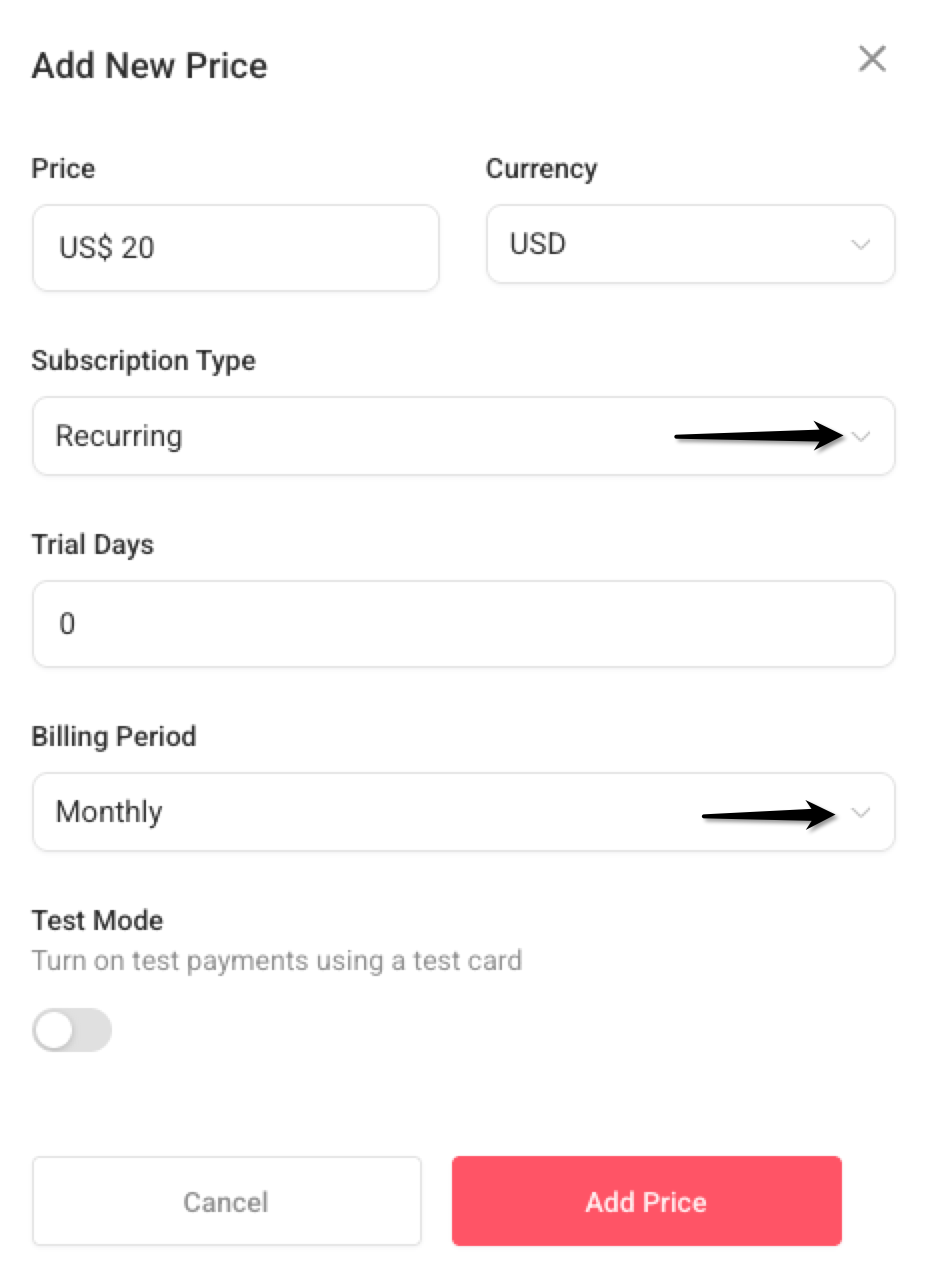
- Click Add, then Save
- Enable Test Mode to test payments (optional)
The subscription details will be reflected in the group description for prospective members.
Group Access
After Payment:
- Private Groups:
- Admins must approve members manually:
- Go to People Tab > Filter: Requested > Accept or Deny Membership
- Public Groups:
- Users are automatically added to the group after successful payment.
Notifications
Both users and admins receive email notifications regarding group payments and membership status:
- Users:
- Payment confirmation email
- Membership access confirmation (if approved)
- Admins/Owners:
- Notification when a user pays
- Alert when a membership request is received (Private Groups)
Cancellations and Refunds
Cancellation Scenarios:
From GrowthMap™ Payments Screen:
- User receives cancellation confirmation email
- Admins receive a notification
- User is automatically removed from the group
From Stripe Dashboard:
- User receives cancellation confirmation email
- Admins receive a notification
- User is automatically removed from the group
Refund Process
From GrowthMap™:
- Go to Payments > Transactions
- Click the three dots next to the transaction
- Select Refund
From Stripe:
- Refunds can also be issued from the user’s Contact Details screen in Stripe.