How to Create Course Offers in GrowthMap™
Creating an offer allows you to sell courses or bundles to your members. Follow these steps to set up and publish your course offer.
1. Navigate to the Offers Section
- Go to Memberships > Offers in the GrowthMap™ menu.
- This will open the Offers dashboard where all existing offers are listed.
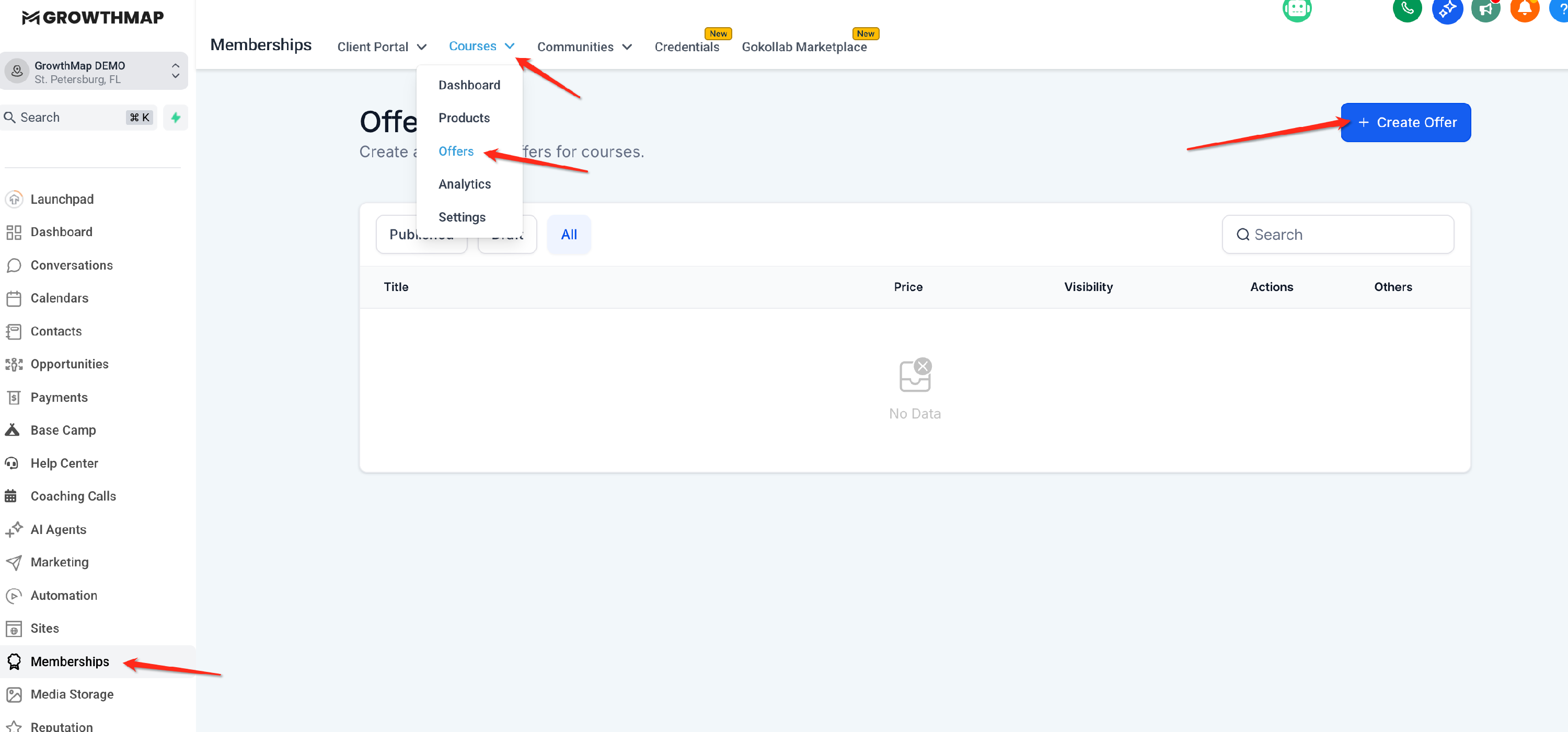
2. Start a New Offer
- Click the + Create Offer button, usually located in the top-right corner.
- Choose to start from scratch or use an existing template if available.
3. Add Offer Details
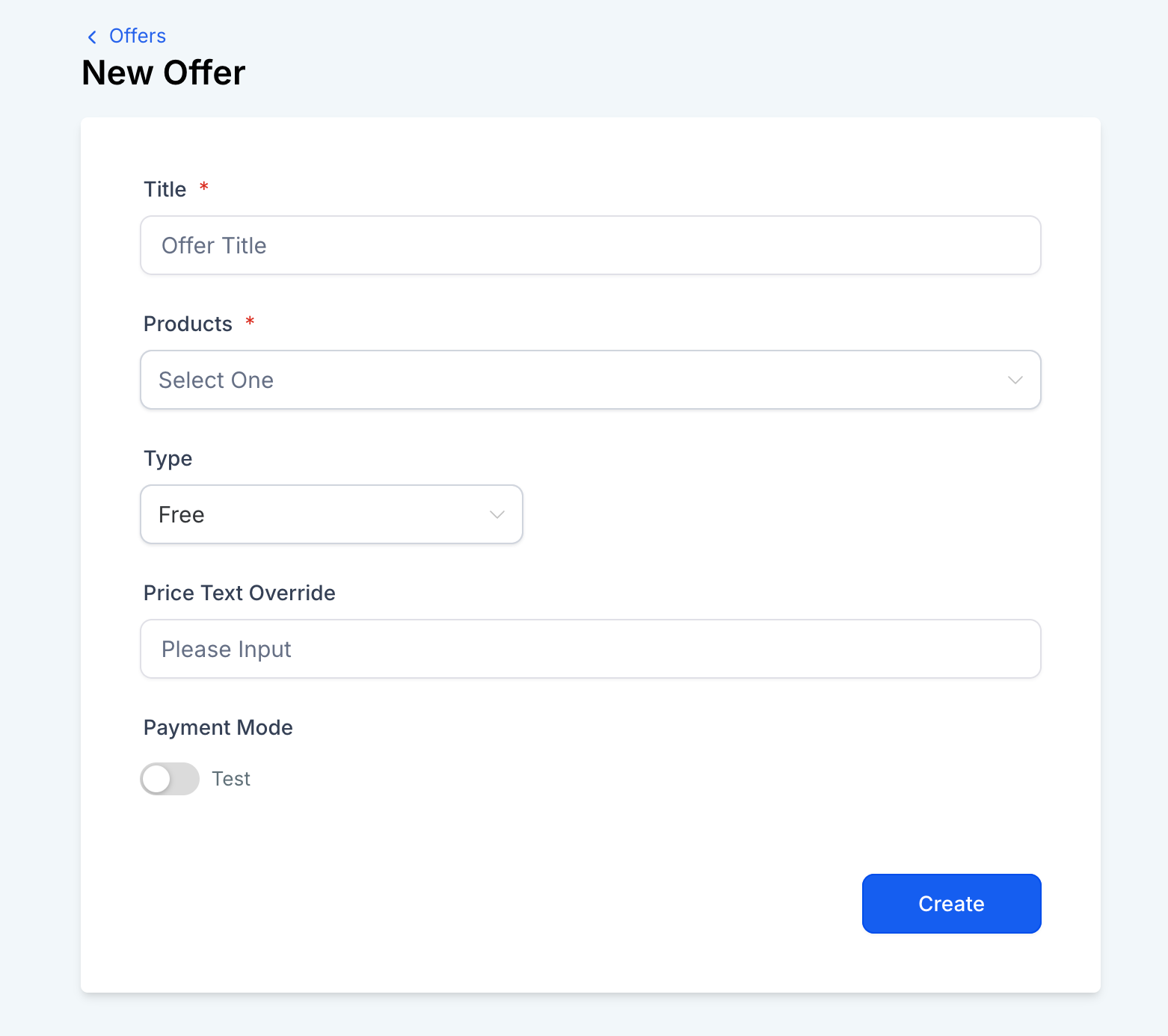
Title
- Enter a clear, descriptive name for your offer (e.g., “Complete Marketing Course Bundle”).
Product
- Select the course(s) you want to include.
- You can select multiple courses to create a bundle.
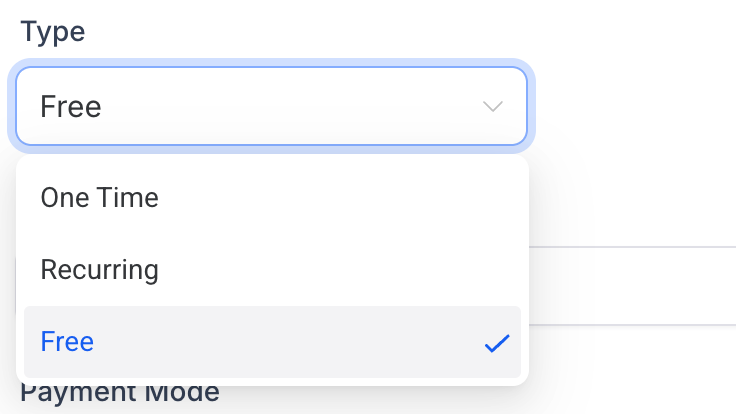
Payment Type
Choose one of the following:
- Free – enroll members at no cost
- One-Time Paid – a single payment
- Recurring – subscription payments (monthly or yearly)
Set the Price
- For paid offers, enter the price.
- Optionally, add a Compare-at Price to show discounted pricing.
4. Create and Publish the Offer
- Click Create to finalize your offer.
- To make it available to customers, publish the offer.
5. Customize and Save
Enhance your offer’s checkout experience:
- Add images, videos, or logos to the checkout page
- Set up product variants (e.g., different access tiers or pricing options)
Once customized, click Save to publish your offer and start selling.